> For the complete documentation index, see [llms.txt](https://beamline.gitbook.io/beamline-docs/llms.txt). Markdown versions of documentation pages are available by appending `.md` to page URLs; this page is available as [Markdown](https://beamline.gitbook.io/beamline-docs/guides/build-a-voice-agent-ui-in-react.md).
# Build a voice agent UI in React
A voice agent interface in React connected through your speech-provider adapter: a support panel, a call screen and a voice workspace on one session, the agent's orb, a live transcript, mute, typing a
> The original of this page is on beamline.io: [beamline.io/guides/react-voice-agent-ui](https://beamline.io/guides/react-voice-agent-ui).
By Danylo Pravda, 2026-10-13
A voice interface has more states than a chat: the microphone is not yet allowed, or blocked, or missing; the agent is listening, thinking or talking; the connection drops and comes back; the person would rather type for a moment. Beamline provides voice controls and a [voice agent](https://beamline.io/components/voice-agent) screen that puts them together through a provider adapter. This guide covers how they fit.
## Three layouts, one session
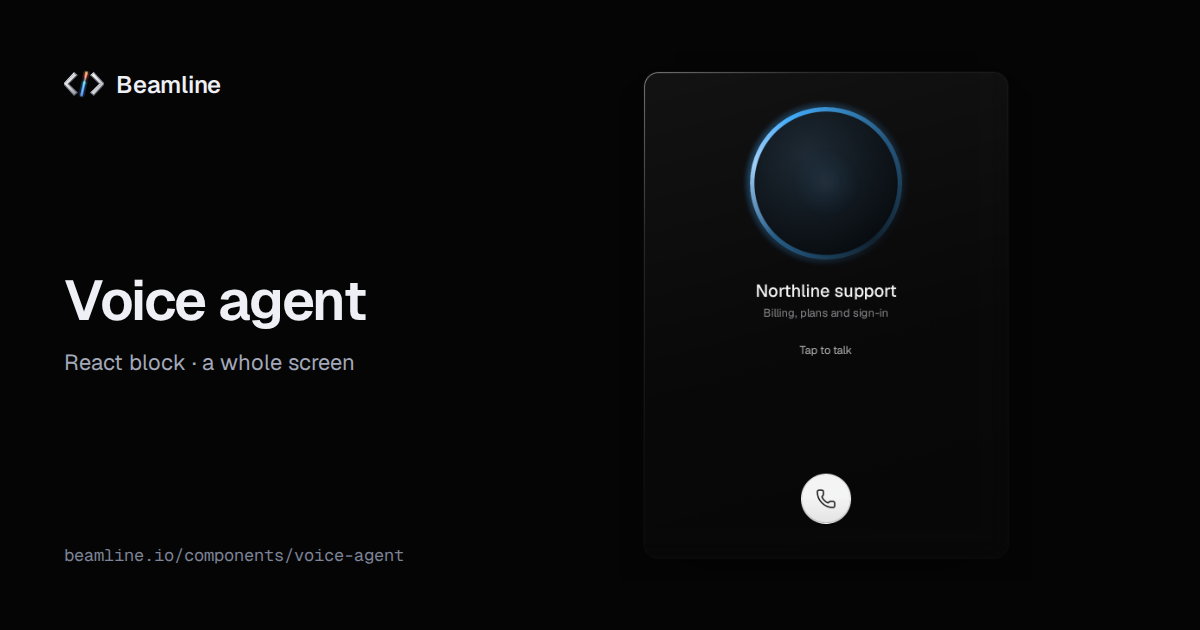
The voice agent block draws the same session three ways:
* **Panel:** a support widget where people type or talk to the agent.
* **Call:** a phone-style screen with the agent's [orb](https://beamline.io/components/orb) and one call button.
* **Workspace:** voice as the main way to work, with an empty state, the live transcript and the [conversation bar](https://beamline.io/components/conversation-bar).
All three run on one session: the same adapter, or a session you share with the rest of the screen.
## Bring your provider adapter
The block does not know which speech service you use. You give it an adapter with one method, `connect`, and it hands you back handlers to report what happens:
Integration sketch: supply the provider SDK adapter; map its events to VoiceAgentHandlers and return VoiceAgentConnection.
```tsx
import { VoiceAgent } from "@beamline/voice-agent";
import type { VoiceAgent as VoiceAdapter } from "@beamline/lib-voice";
export const myAgent: VoiceAdapter = {
async connect({ stream, mode, signal }, on) {
const call = await provider.start({ audio: stream, textOnly: mode === "text", signal });
call.onState((s) => on.status(s)); // "listening" | "thinking" | "talking"
call.onText((t) => on.transcript({ id: t.id, role: t.speaker, text: t.text, final: t.done }));
call.onDrop(() => on.connection?.("reconnecting"));
call.onError((e) => on.error(e));
return {
sendText: (text) => call.send(text),
setMuted: (muted) => call.mute(muted),
outputLevel: () => call.agentVolume(), // 0–1, drives the orb
disconnect: () => call.end(),
};
},
};
```
A transcript line grows in place: send the same `id` again while the words arrive (`final: false`) and once more when it is finished. The orb widens with `outputLevel` while the agent talks. Optional methods let a typed session turn into a call without losing the reply in flight, and switch microphones mid-call. For dictation, the library also ships speech-to-text from the browser's own recognition, with no dependency.
## The parts on their own
| part | what it is for |
| --------------------------------------------------------------------- | ------------------------------------------------------------------------------------------------------------------------------ |
| [Orb](https://beamline.io/components/orb) | the agent's presence: still at rest, an arc while thinking, widening with the voice; from a 16 px mark to a 240 px call screen |
| [Conversation bar](https://beamline.io/components/conversation-bar) | the bottom bar of a call: call and hang up, the agent's state as bars, a timer, mute, and typing when talking is not an option |
| [Voice button](https://beamline.io/components/voice-button) | start and stop talking: click to toggle or hold to talk, with a keyboard shortcut |
| [Mic selector](https://beamline.io/components/mic-selector) | choose and test the microphone, with every permission and device state spelled out |
| [Transcript viewer](https://beamline.io/components/transcript-viewer) | a recording and its words together: the spoken word lights up as it plays |
| [Speech input](https://beamline.io/components/speech-input) | a text field you can speak into |
| [Live waveform](https://beamline.io/components/live-waveform) | loudness drawn as it happens |
The rest of the set: [audio player](https://beamline.io/components/audio-player), [bar visualizer](https://beamline.io/components/bar-visualizer), [waveform](https://beamline.io/components/waveform), [scrub bar](https://beamline.io/components/scrub-bar), [voice picker](https://beamline.io/components/voice-picker) and [matrix](https://beamline.io/components/matrix).
## The states that make it trustworthy
* **The microphone tells the truth.** Not yet allowed, blocked (and how to unblock it), no microphone, unplugged: each has its own words and its own fix, instead of a button that silently does nothing.
* **State comes from your operation.** The voice button shows recording, finishing and done from what your code reports, never from a timer, so it cannot claim words were heard when they were not.
* **Typing is always there.** The conversation bar opens a text field when talking is not an option, and Escape closes it and returns focus.
* **The keyboard works the call.** Call, mute and the voice button are buttons; hold-to-talk works with Space, Enter or a shortcut you choose.
## When not to use it
A text-only assistant is the [agent workspace](https://beamline.io/components/agent-workspace) or a [conversation](https://beamline.io/components/conversation) with [messages](https://beamline.io/components/message) ([the AI interface guide](https://beamline.io/guides/ai-agent-interface)). Dictating into a form is [speech input](https://beamline.io/components/speech-input). People talking to people is the [chat thread](https://beamline.io/components/chat-thread).
## Ask your agent for it
With Beamline connected ([setup for your agent](https://beamline.io/connect)): "a voice support panel on our speech provider that also takes typed questions, with a live transcript". The agent installs the block and writes the adapter around your provider's SDK.
## Voice is separate from interface sound
Your adapter supplies the speech provider, connection, transcription and audio output. The UI does not include paid provider access or promise that every provider has a ready-made integration. Browser microphone permission and media support still apply; follow the [dated browser coverage and limits](https://beamline.io/tested).
Optional [Sound](https://beamline.io/components/sound) feedback is for interface actions, not speech synthesis or recording. Use an [audio player](https://beamline.io/components/audio-player) for ordinary media playback. [Customization](https://beamline.io/docs/customize) explains how visual motion and optional interaction sound fit alongside these capabilities.
---
# Agent Instructions
This documentation is published with GitBook. GitBook is the documentation platform designed so that both humans and AI agents can read, navigate, and reason over technical content effectively. Learn more at gitbook.com.
## Querying This Documentation
If you need additional information that is not directly available in this page, you can query the documentation by asking a question.
Perform an HTTP GET request on the following URL with the `ask` and `goal` query parameters:
```
GET https://beamline.gitbook.io/beamline-docs/guides/build-a-voice-agent-ui-in-react.md?ask=&goal=
```
`ask` is the immediate question: it should be specific, self-contained, and written in natural language.
`goal` is what the user is ultimately trying to achieve, the reason they need the answer. Sharing it helps GitBook give you a better, more relevant answer. A goal is most helpful when it describes the outcome the user wants rather than restating the question. For example, with `ask=how do I create an API token`, a goal like `automate deployments from our CI pipeline` lets GitBook tailor the answer to that use case.
The response will contain a direct answer to the question and relevant excerpts and sources from the documentation.
Use this mechanism when the answer is not explicitly present in the current page, you need clarification or additional context, or you want to retrieve related documentation sections.